Design how calls go with workflows
Use the Ladoo workflow editor to set the steps each call follows: talk, collect details, answer questions, take messages, check conditions and transfer.
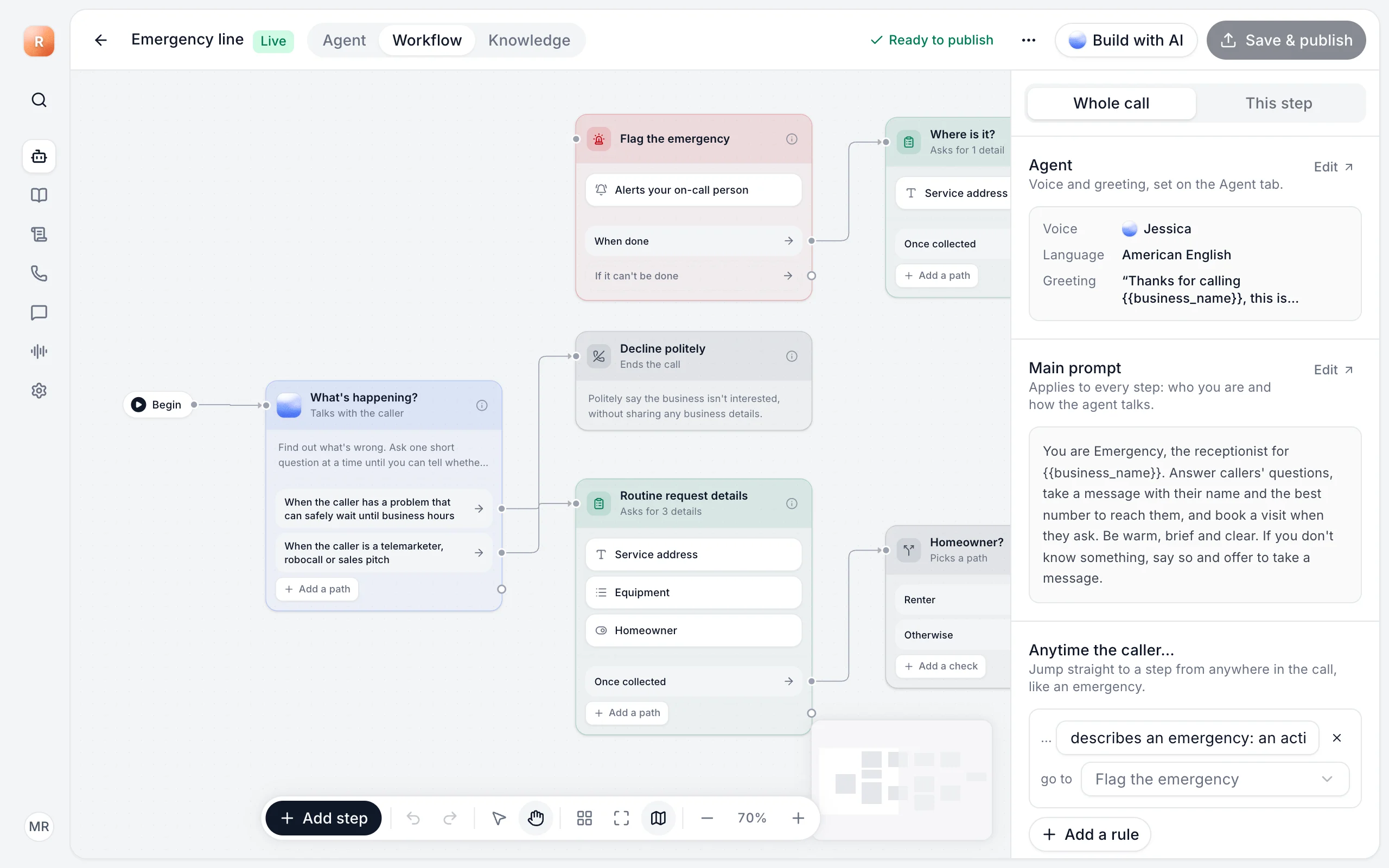
The Workflow tab shows the steps each call follows, as boxes connected by arrows. Every agent has one. The starting points already include a sensible workflow, so you may never need to change it.
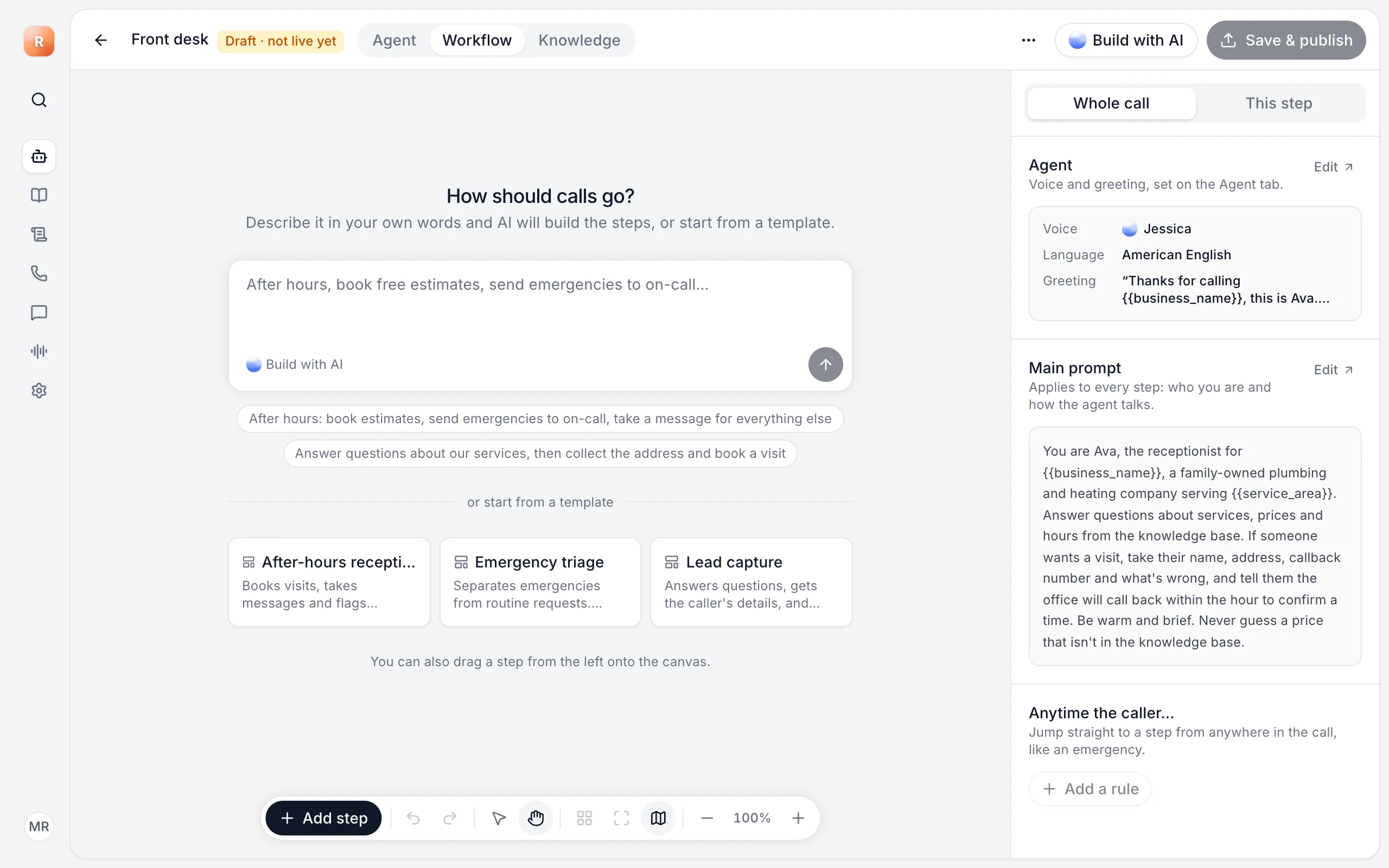
Start a workflow
On an empty canvas, describe how calls should go in your own words and click Build with AI. Or start from a template like After-hours receptionist, Emergency triage or Lead capture.
Steps
Click Add step, or drag a step from the list onto the canvas.
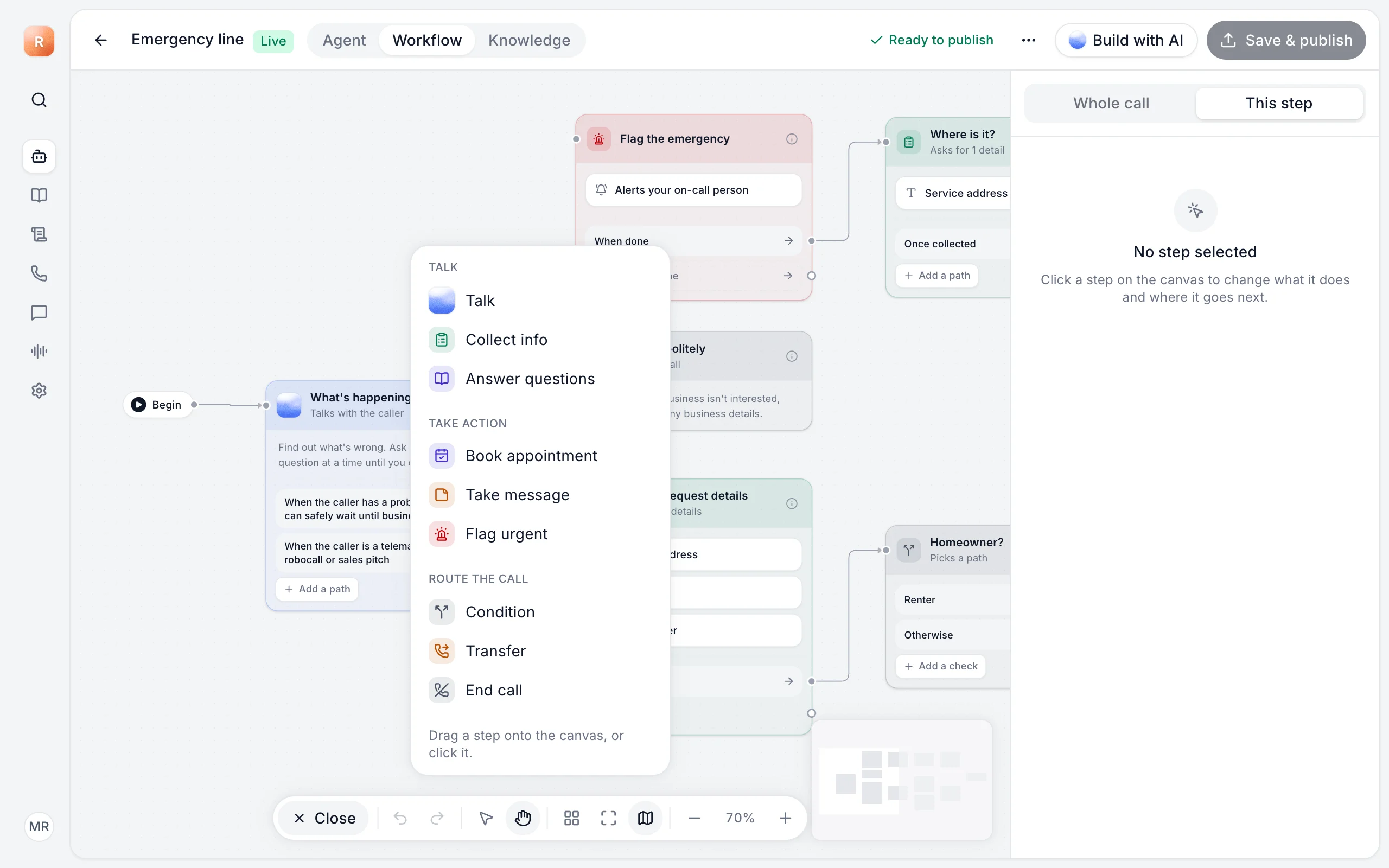
| Group | Step | What it does |
|---|---|---|
| Talk | Talk | A conversation with a goal, like finding out why they're calling. |
| Talk | Collect info | Asks for specific details, like the service address. |
| Talk | Answer questions | Answers from the agent's knowledge bases. |
| Take action | Take message | Takes a message for your team. |
| Take action | Flag urgent | Marks the call urgent, so it stands out in Calls. |
| Route the call | Condition | Sends the call one way or another, like homeowner or renter. |
| Route the call | Transfer | Puts the caller through to a person. See Transfer calls to your team. |
| Route the call | End call | Says goodbye and hangs up. |
Edit a step
Click a step to open it in the panel on the right (This step). Each step has a Name (only you see it) and its own settings, like what to ask or where to transfer. Steps that talk to the caller can have several paths out, like "When the caller has a problem that can safely wait" and "When the caller is a telemarketer". Click Add a path to add one.
Settings for the whole call
Switch to Whole call to see the agent's voice, greeting and main prompt (edited on the Agent tab). Under Anytime the caller… add rules that jump to a step from anywhere in the call. For example: if the caller describes an emergency, go to Flag the emergency.
Business hours
To act differently after hours, use a Condition step that checks The time of the call, then route open-hours calls one way and closed-hours calls another.
Publish
When the top bar says Ready to publish, click Save & publish. If something needs fixing first, like a step that's missing a setting, the top bar tells you.
Still stuck?
Ask our support agent (it runs on Ladoo), or email the team.