Add AI chat to your website
Put your Ladoo agent on your website as a chat. Copy one line of code into WordPress, Wix, Squarespace, Shopify, Webflow or any site.
The same agent that answers your phone can answer visitors on your website. It uses the same knowledge, takes messages the same way, and every conversation shows up in Calls.
Website chat is on the Pro and Agency plans.
1. Create a chat widget
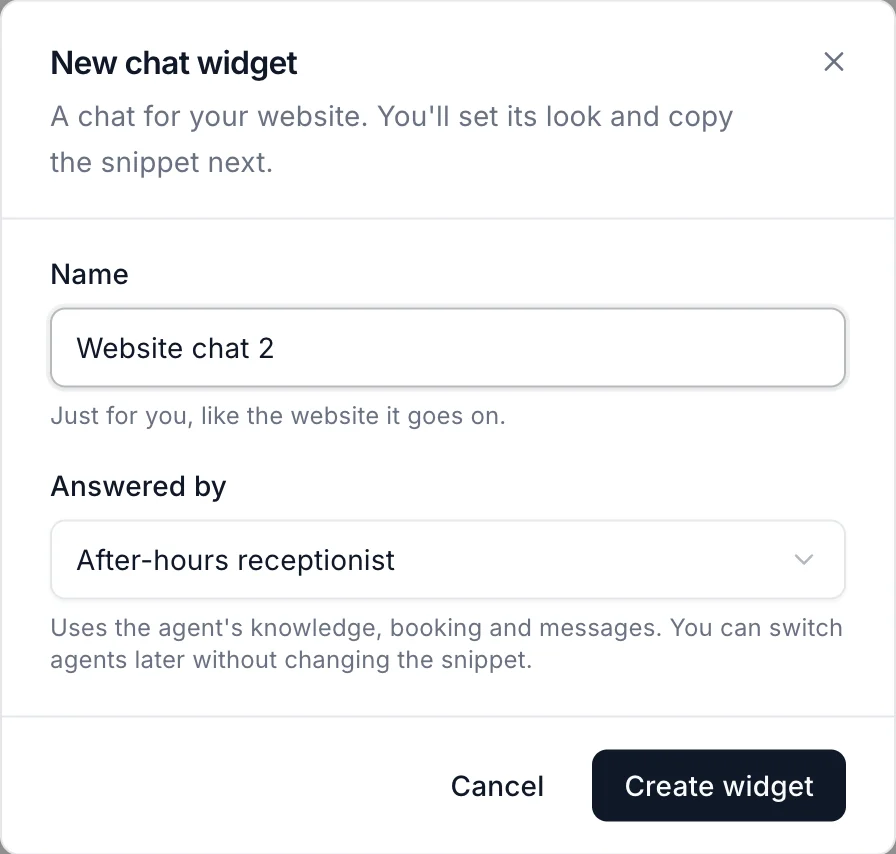
- Open Chat Widgets and click New widget.
- Give it a Name, like the website it goes on. Only you see this.
- Under Answered by, choose the agent.
- Click Create widget.
2. Add your website's address
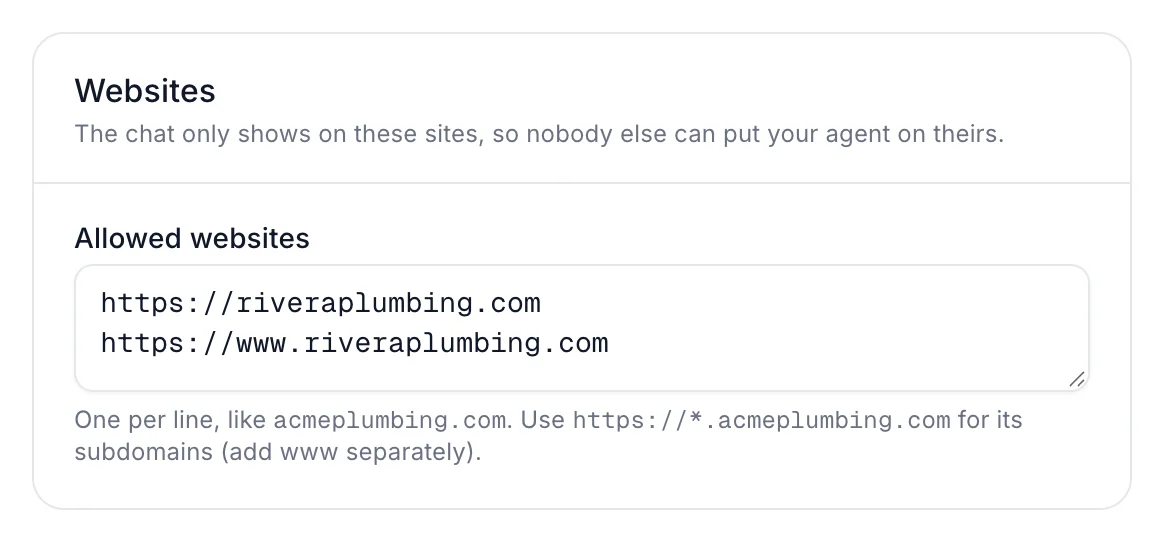
Under Websites, list the sites the chat may appear on, one per line, like riveraplumbing.com. Add www.riveraplumbing.com separately if you use it. The chat only shows on these sites, so nobody else can put your agent on theirs.
3. Copy the code
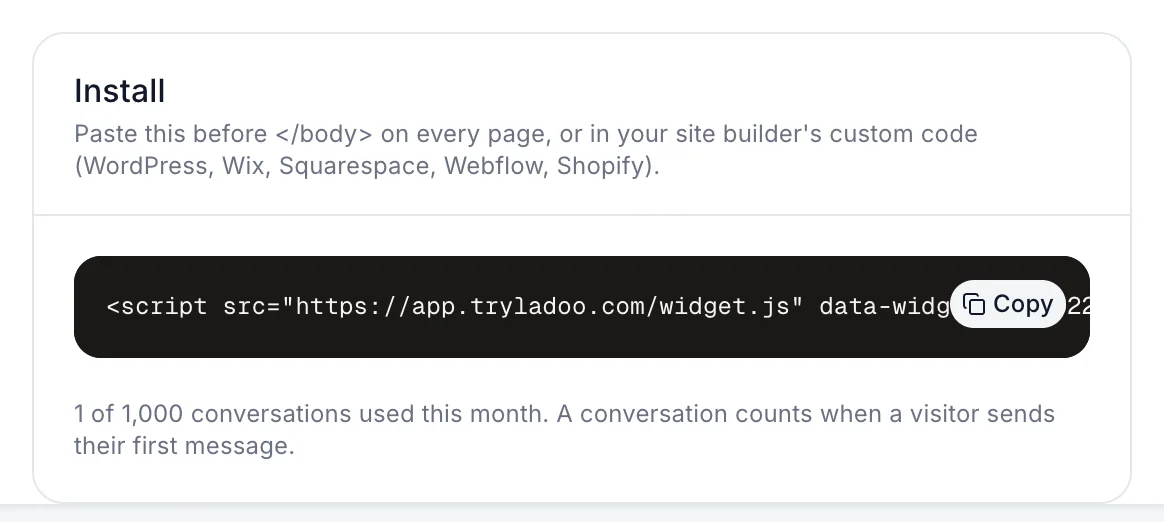
In Install, click Copy. Paste the code before </body> on every page, or in your site builder's custom code setting.
Site builders
Menus move around, so check your builder's help pages if something looks different.
WordPress
Use a code snippets plugin, like WPCode. Add a new snippet, paste the code, and set it to load in the site-wide footer. If your theme has a "footer scripts" setting, you can paste it there instead.
Wix
Go to Settings → Custom code (under Advanced), click Add Custom Code, paste it, choose All pages, and place it in Body - end. Wix needs a premium plan and a connected domain for custom code.
Squarespace
Go to Code Injection in your site's settings and paste the code in Footer. Code injection needs a paid Squarespace plan.
Shopify
Go to Online Store → Themes, open the ⋯ menu on your current theme and choose Edit code. Open theme.liquid and paste the code just before </body>. Save.
Webflow
Go to Site settings → Custom code and paste it in Footer code. Save and publish your site.
4. Check it
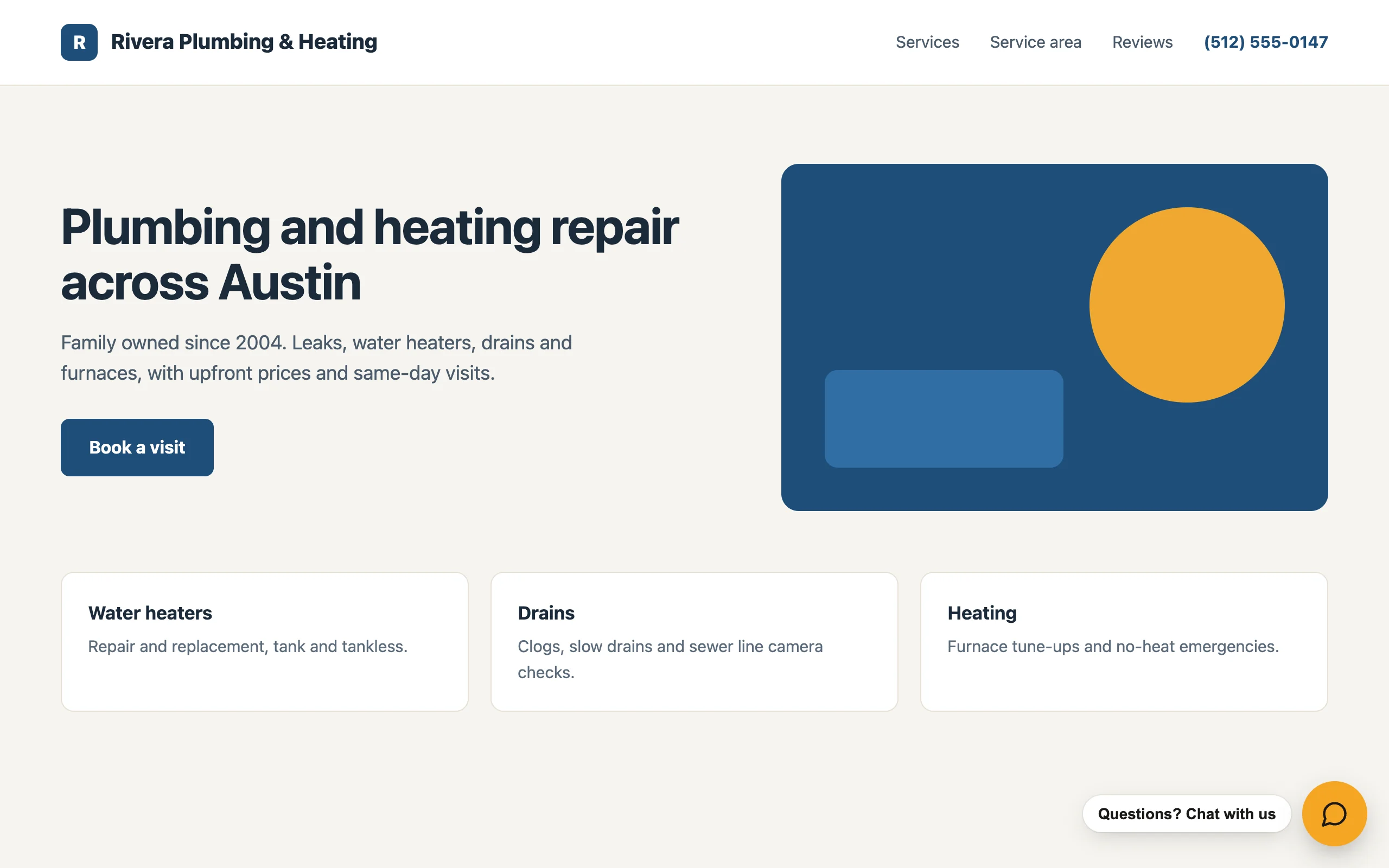
Open your website. The chat button appears in the corner. Send a message, then look for the conversation in Calls.
Conversations and limits
A conversation counts when a visitor sends their first message: 1,000 a month on Pro and 5,000 on Agency. When you run out, the chat tells visitors it isn't available right now and asks them to call or email instead. Chat Widgets shows how many you've used.
Still stuck?
Ask our support agent (it runs on Ladoo), or email the team.