Condition step: send the call one way or another
The Condition step in a Ladoo workflow routes calls by the caller's answers, values from your code or your own system, or the time of the call, like open hours versus after hours.
By the Ladoo team · Updated
A Condition step sends the call down a path based on a check, like whether the caller owns the home, or whether it's during business hours. It doesn't talk to the caller. It checks, then moves the call on straight away.
When to use it
- To handle open hours and after hours differently, with The time of the call: for example, transfer to the office while it's open and take a message after hours.
- To send renters to take a message and homeowners to book.
- To act on a value from a Custom code or Webhook step, like a quote over a limit or a job that's already scheduled.
Set it up
- On the Workflow tab, click Add step and choose Condition.
- Click Add a check that goes to… and choose the step it should go to.
- Under If, choose what to check:
- The caller's answers: a detail under Caller info on the Agent tab, like Homeowner.
- Business settings: one of your business settings, like your time zone.
- Set by your code: a value from a Custom code step.
- From your system: a value saved by a Webhook step.
- The time of the call, under Other.
- Choose the comparison and the answer, like is "Yes".
- Add more checks the same way, then set Otherwise for every call that matches none of them.
- Click Save & publish.
Comparisons
| Comparison | Matches when |
|---|---|
| is | The answer is exactly this. |
| is not | The answer is anything but this. |
| is one of | The answer is any of a list, separated by commas, like gold, silver. |
| has an answer | The caller gave any answer. |
| is empty | The caller didn't give an answer. |
Check the time of the call
Choose The time of the call, then is during or is outside, then which hours:
- the calendar's booking hours: the hours callers can book, set in Calendar → Settings. Each call reads them from the calendar, so when you change your booking hours, this check changes too, and callers sent to booking always have times to choose from. New time checks start with this when the agent books into a calendar.
- hours set here: pick the days, and set From and Until: type a time like
7:30pmor pick one from the list. Use it for hours that should differ from your booking hours, like phones answered from 7 AM while bookings start at 9. Times are in the business's time zone.
For example, is during the calendar's booking hours goes to Transfer to the office, and Otherwise goes to Take a message.
Don't put a time check in front of booking. Your calendar only offers open times, so a caller who wants to book at 10 PM can still book a time tomorrow. Send callers who want to book straight to booking, at any hour, and use the time check for the rest, like reaching a person. If a time check decides whether callers can reach a booking step, the step shows a warning. Select it and click Send callers straight to booking to route the steps before it to booking and remove the check (⌘Z undoes it). A time check that picks between a person and a message is fine, even if the transfer books when nobody answers. Build with AI also fixes one the next time it changes that check or the steps leading to it.
If the agent doesn't book into a Google, Outlook or calendar-link calendar (for example, it books only through your CRM), a check on the calendar's booking hours never matches, so every call takes the other path. The step shows a note until you connect a calendar or set the hours here.
When the hours differ from your calendar
Your agent only offers appointment times inside your calendar's booking hours. When a check with hours set here says different hours, a note under it shows both. A call at 7:30 AM can pass a 7 AM–6 PM check and still get no times before the calendar opens at 9.
The note offers two fixes. Nothing changes until you click one:
- Use the calendar's hours changes this check to match the calendar.
- Set the calendar to … changes the calendar's booking hours to match this check, and any other time checks in the workflow. It takes effect right away for every agent that books into that calendar. Only owners and admins see it, and the confirmation has Undo, which puts the old hours back unless they were changed again since.
Two checks that together cover your week, like weekdays and Saturday, count as matching a calendar open on both.
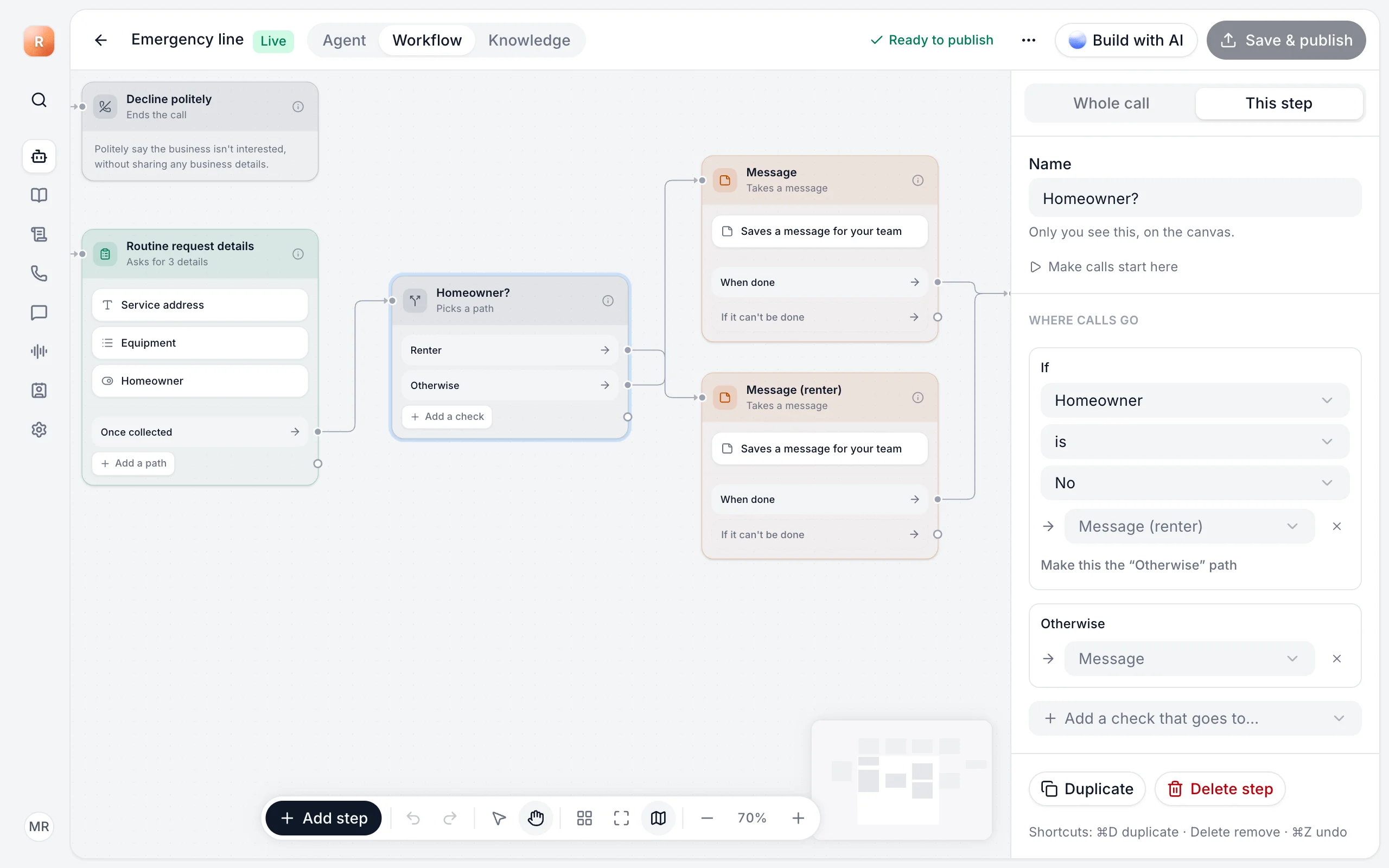
Example: homeowner or renter
If Homeowner is "No" → Take a message ("Your landlord will need to call us")
Otherwise → Book appointment
What the caller hears
Nothing. The check happens instantly, and the caller hears the next step.
What shows on the call record
The call's transcript and summary in Calls show what happened after the check.
Limits
- Checks run from top to bottom, and the first one that matches wins. Put the most specific checks first.
- Every Condition needs an Otherwise, so every call has somewhere to go.
- A Condition checks answers and values, not what the caller says. To route on what the caller says, add paths to a Talk step.
- Rules under Whole call → Anytime the caller… don't apply at a Condition step, since it doesn't talk to the caller.
FAQ
How do I set my business hours?
Set them once as your booking hours in Calendar → Settings, then use The time of the call with is during and the calendar's booking hours. The workflow and the times callers are offered then always agree. If you tell Build with AI your hours, it adds this check, and if your calendar still has its starting hours (Monday to Friday, 9 to 5), it offers to set them for you. Without a calendar, choose hours set here and pick your open days; for different hours on Saturday, add a second check for Saturday.
What if the caller hasn't answered the question yet?
Checks like is and has an answer don't match a missing answer, so the call moves on to the next check or Otherwise. is empty and is not do match it. Put a Collect info step first to make sure you have the answer.
Can I check two things at once?
Chain two Condition steps: the first check goes to a second Condition step that checks the other thing.
Related guides: LeadConnector step: tag, note and move contacts during a call, Transfer step: put the caller through to a person and Custom code step: work things out with JavaScript.
Still stuck?
Ask our support agent (it runs on Ladoo), or email the team.