Design how calls go with workflows
Use the Ladoo workflow editor to set the steps each call follows: talk, collect details, book, take messages, check your own systems, update your CRM and transfer.
By the Ladoo team · Updated
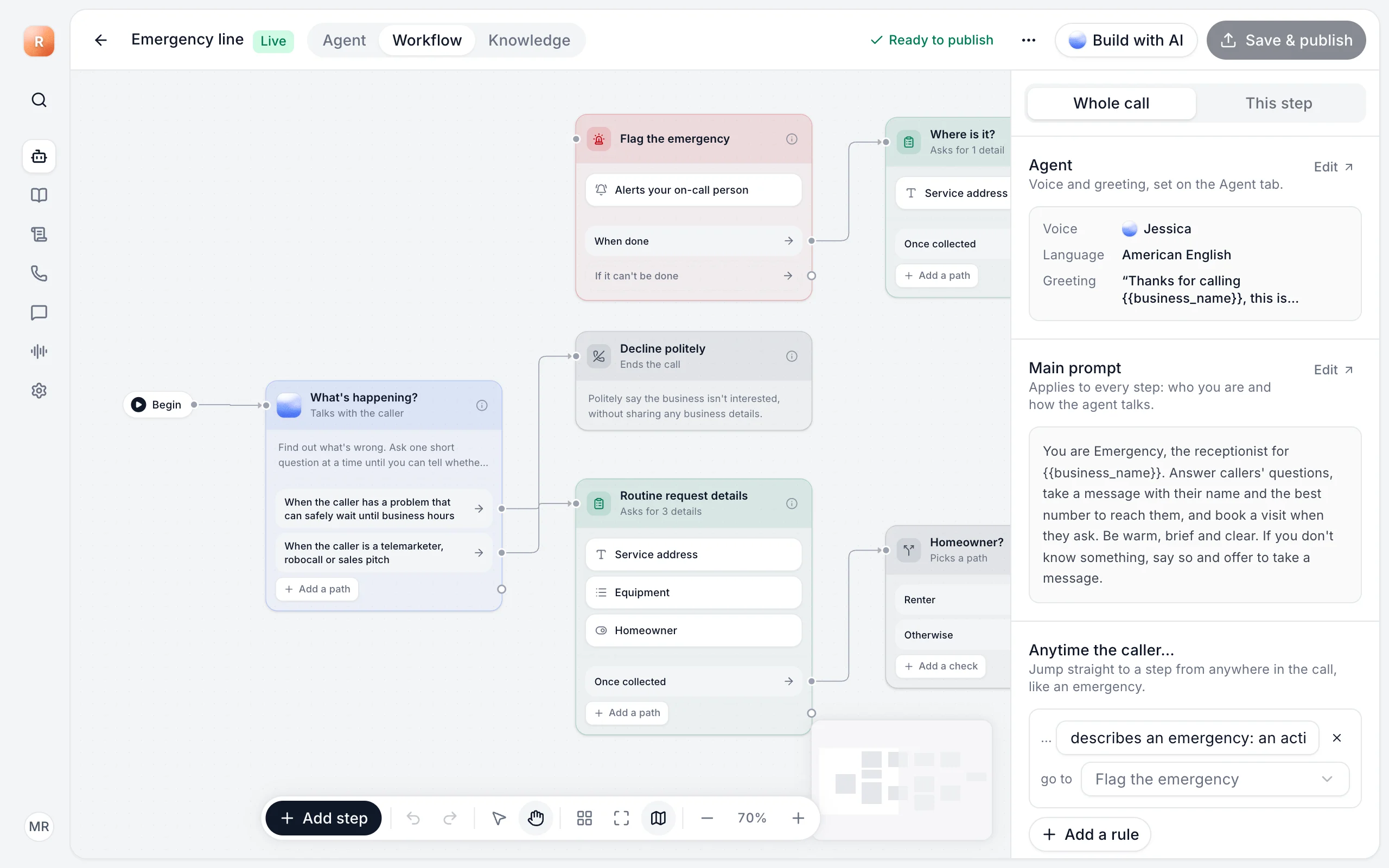
The Workflow tab shows the steps each call follows, as boxes connected by arrows. Every agent has one. Start from a template or one sentence, then shape every step yourself. The starting points already include a sensible workflow, so you may never need to change it.
Start a workflow
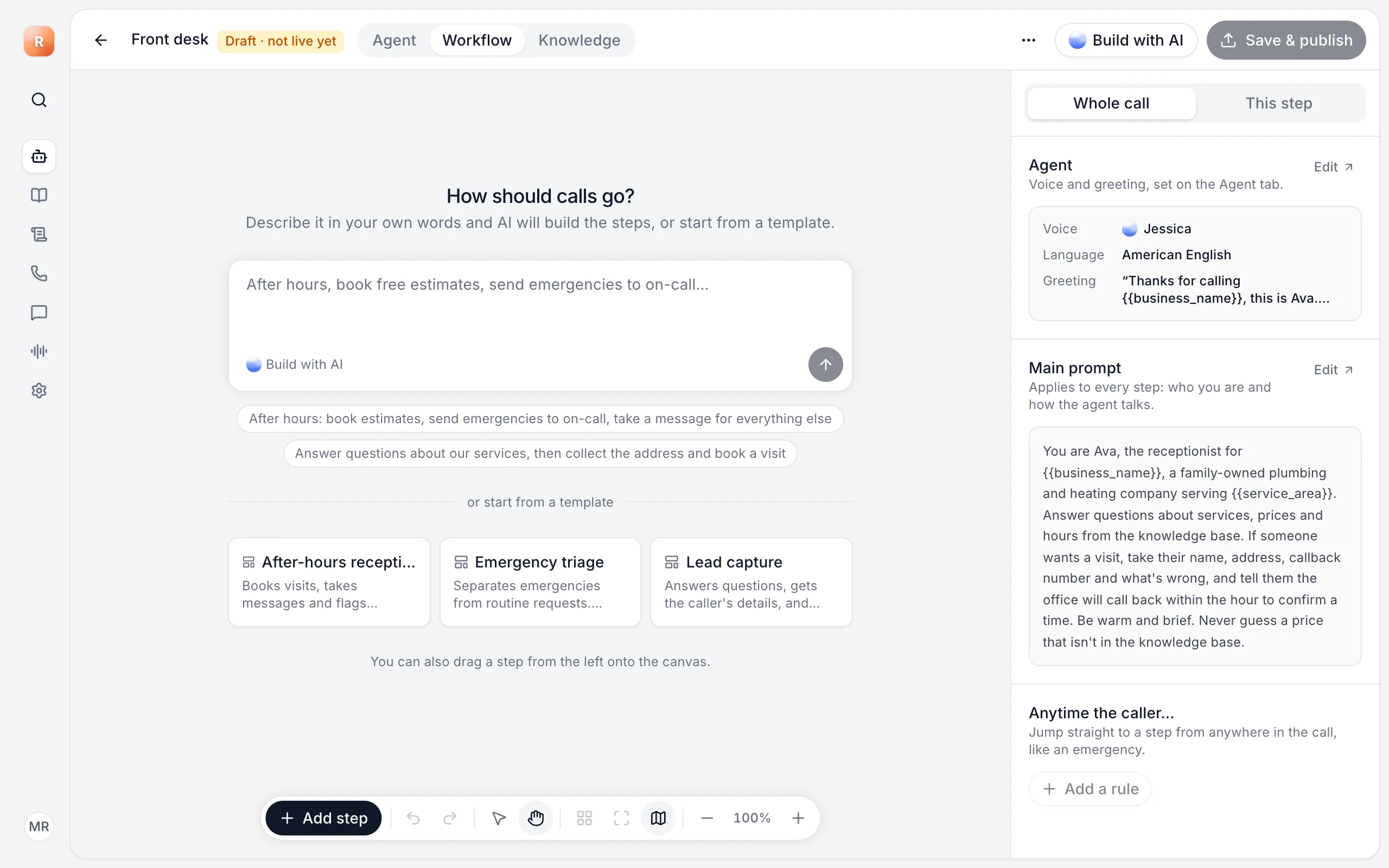
On an empty canvas, describe how calls should go in your own words and click Build with AI. Or start from a template: After-hours receptionist, Emergency triage or Lead capture.
Steps
Click Add step, or drag a step from the list onto the canvas. A step you click in the list goes into an empty spot on the canvas, so it never covers another step.
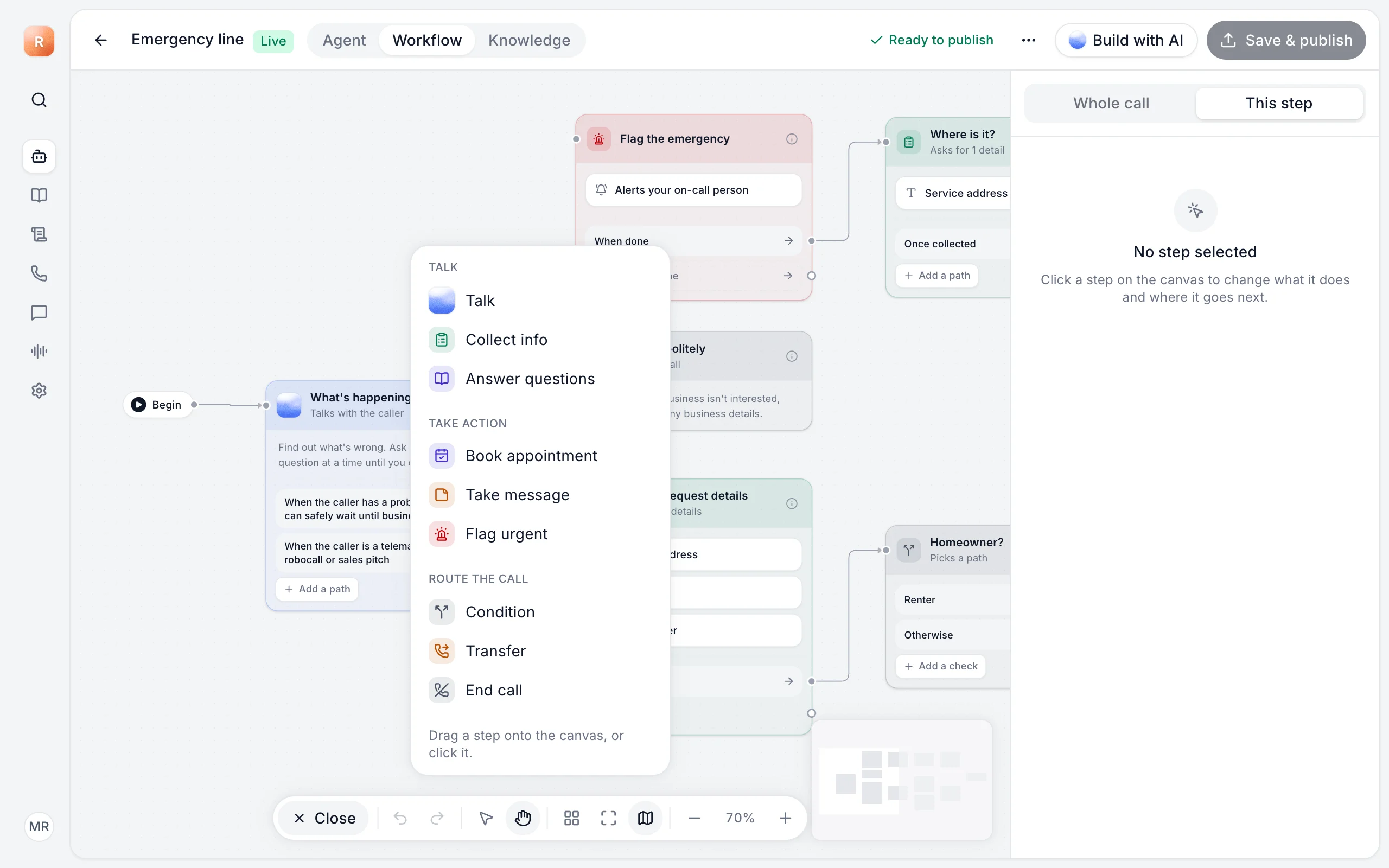
| Group | Step | What it does |
|---|---|---|
| Talk | Talk | A conversation with a goal, like finding out why they're calling. |
| Talk | Collect info | Asks for specific details, like the service address. |
| Talk | Answer questions | Answers from the agent's knowledge bases. |
| Take action | Book appointment | Finds an open time in your CRM calendar and books it. |
| Take action | Take message | Takes a message for your team. |
| Take action | Flag urgent | Marks the call urgent, so it stands out in Calls. |
| Take action | Webhook | Sends details to your own system during the call and uses its reply. |
| Take action | Custom code | Runs a short JavaScript function to work something out, like a trip fee. |
| Take action | LeadConnector | Tags, notes, updates or moves the caller's contact while they're on the line. |
| Route the call | Condition | Sends the call one way or another, like homeowner or renter, or open or closed. |
| Route the call | Transfer | Puts the caller through to a person. |
| Route the call | End call | Says goodbye and hangs up. |
Edit a step
Click a step to open it in the panel on the right (This step). Each step has a Name (only you see it) and its own settings under During this step, like what to ask or where to send a request. Under After this step, choose where the call goes next.
Steps that talk to the caller can have several paths out, like "When the caller has a problem that can safely wait" and "When the caller is a telemarketer". Click Add a path to… to add one, or drag from the dot on the right of a card to another step. Each path is drawn as a line that goes around the other cards, so it never covers a step. If the canvas gets crowded, click Tidy up to space the steps out.
Settings for the whole call
Switch to Whole call to see the agent's voice, greetings and main prompt (edited under Basics and Voice on the Agent tab). Business settings shows the numbers and details your steps use, like the number a transfer dials, with the steps that use each. Change one there and every step follows (see Transfer). Under Anytime the caller…, add rules that jump to a step from anywhere in the call. For example: if the caller describes an emergency, go to Flag the emergency.
Business hours
To act differently after hours, use a Condition step that checks The time of the call against the calendar's booking hours, then send open-hours calls one way and closed-hours calls another, like a transfer to the office while it's open and a message after hours. Each call reads the hours from your calendar, so the workflow and the appointment times your agent offers always agree. When your agent books into a calendar whose booking hours you've set, it also tells callers those hours when they ask.
Booking doesn't need the check: the calendar only offers open times, so callers can book at any hour, even after hours. Keep the time check for everything else. When you tell Build with AI your hours, it adds this check and, if your calendar still has its starting hours, offers to set the calendar to match. Nothing on the calendar changes until you click Set booking hours. When you set up your business with AI during sign-up, the hours you give are set on the new calendar for you, as long as it still has its starting hours. Hours you've set yourself are never replaced. A check with hours set by hand notes when they differ from the calendar and offers to fix either one. If your knowledge base, like your website, gives different hours from the calendar or your business hours setting, Build with AI says so in its summary when it works on hours. It's only a note: update whichever one is out of date.
Publish
When the top bar says Ready to publish, click Save & publish. If something needs fixing first, like a step that's missing a setting, the top bar shows how many problems there are. Click it to go to each one.
Your edits save as a draft as you go. Calls keep following the live workflow until you publish.
Export and import
Click ⋯ at the top of the editor for Export to file and Import from file. Use them to copy a workflow to another agent or another workspace.
Things that belong to one workspace are left out of the file, and the steps that used them say what to fill in after an import. These include phone numbers, teams, saved webhook header values (often API keys) and CRM pipeline stages.
Related guides: Talk step: have a conversation with a goal, Collect info step: ask callers for specific details and Answer questions step: answer from your knowledge bases.
Still stuck?
Ask our support agent (it runs on Ladoo), or email the team.