Webhook step: check your own system during a call
The Webhook step in a Ladoo workflow sends call details to your own system while the caller is on the line, saves values from its reply, and lets later steps say or check them.
By the Ladoo team · Updated
A Webhook step sends details from the call to your own system while the caller is on the line, and saves values from the reply. Later steps can say those values to the caller or check them in a Condition. Use it to look up a job, check a customer's plan, or send a new lead to your own software.
When to use it
- To tell a caller where their job stands: "Your technician is Marcus, arriving between 1 and 3."
- To check whether a caller has a service plan before offering a free visit.
- To send a new request to your dispatch or job management software as soon as the caller gives the details.
Set it up
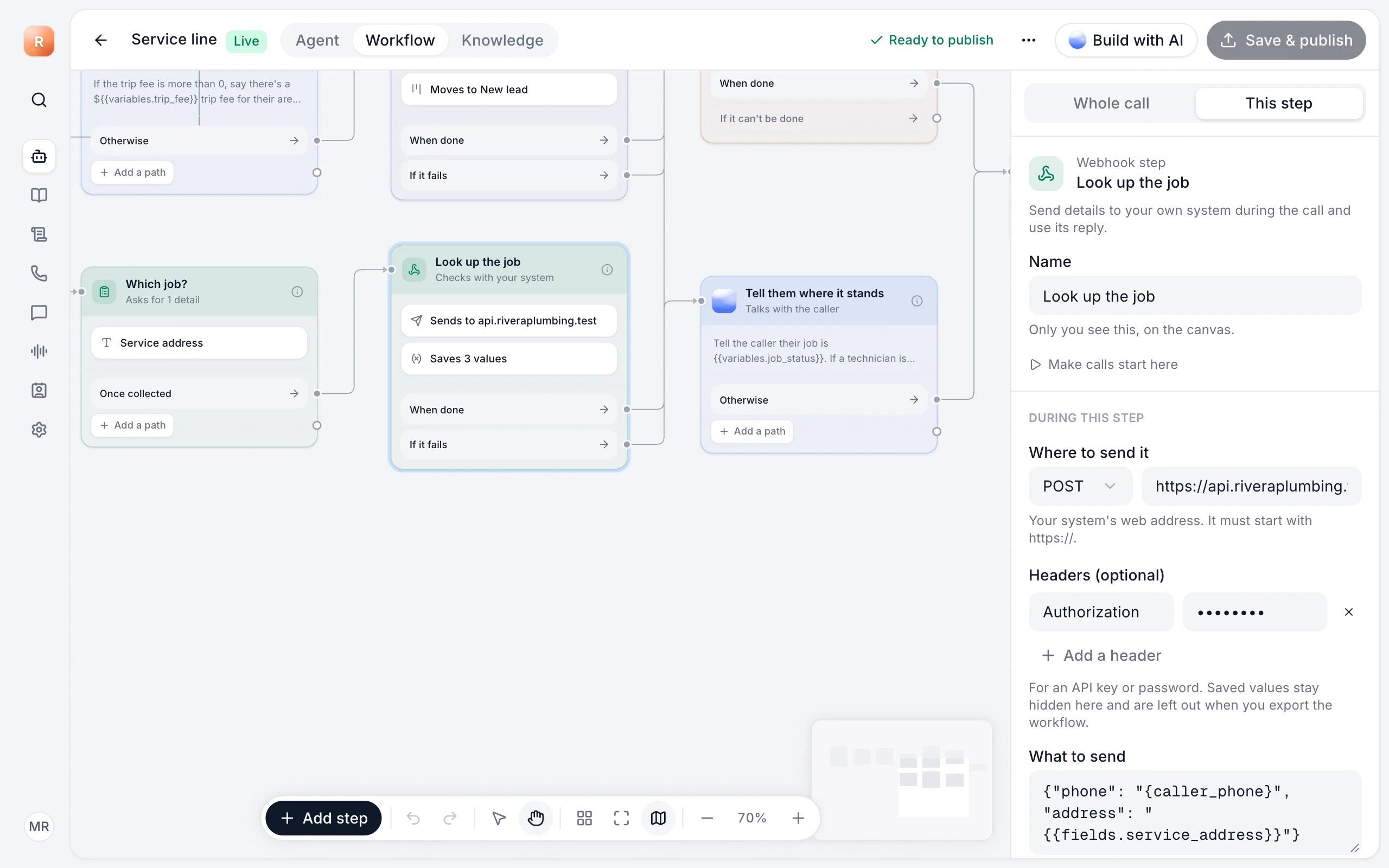
- On the Workflow tab, click Add step and choose Webhook.
- Under Where to send it, choose the method (GET, POST, PUT or PATCH) and paste your system's web address. It must start with
https://. - Optional: under Headers, click Add a header for an API key, like
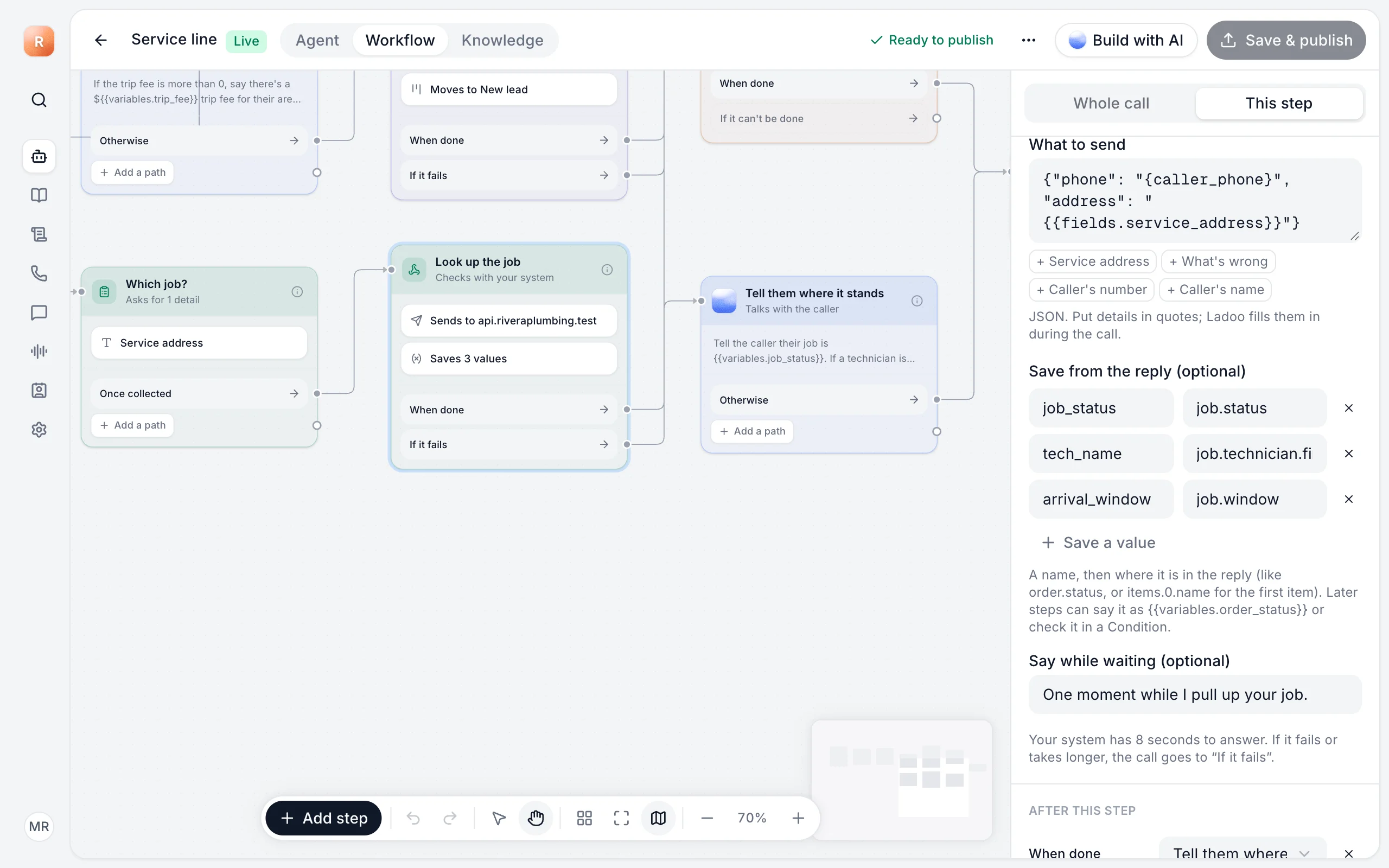
AuthorizationwithBearer your-key. - Under What to send, write the JSON to send. Click a detail below the box to fill it in during the call, like + Service address. (GET requests don't send a body.)
- Optional: under Save from the reply, click Save a value. Give it a name, then where it is in the reply, like
job.status. - Optional: under Say while waiting, add something to say while the request runs, like "One moment while I pull up your job."
- Connect When done to the next step, and If it fails to a step for when your system doesn't answer, like a Take message step.
- Click Save & publish.
Example: look up a plumbing job
Rivera Plumbing's dispatch system looks up jobs by phone number and address.
Where to send it: POST https://api.riveraplumbing.test/jobs/lookup
What to send:
{
  "phone": "{caller_phone}",
  "address": "{{fields.service_address}}"
}
During the call, Ladoo sends:
{
  "phone": "+15125550142",
  "address": "2210 Kelly Ln, Pflugerville, TX 78660"
}
Their system replies:
{
  "job": {
    "status": "scheduled",
    "window": "1 to 3 PM",
    "technician": { "first_name": "Marcus" }
  }
}
Save from the reply:
| Save as | Where it is in the reply | Saved value |
|---|---|---|
job_status | job.status | scheduled |
tech_name | job.technician.first_name | Marcus |
arrival_window | job.window | 1 to 3 PM |
The next Talk step uses them in What should the agent do here?: "Tell the caller their job is {{variables.job_status}}, and {{variables.tech_name}} will be there between {{variables.arrival_window}}."
Details you can fill in
Use these in Where to send it, header values, What to send and Say while waiting. Type {{ in the box, or click Add variable under it, to pick one from a list instead of typing it. In What to send, a pick outside the quotes is added as a new "name": "value" pair so the JSON stays valid.
| Placeholder | What it's filled in with |
|---|---|
{{fields.service_address}} | A detail the caller gave, by its key on the Agent tab. |
{{variables.trip_fee}} or {{trip_fee}} | A business setting, or a value saved by an earlier step. |
{caller_name}, {caller_first_name} | The caller's name, if the agent knows it. |
{caller_phone} | The number the caller is calling from. |
Inside the JSON, put each placeholder in quotes, like "{caller_phone}". Ladoo fills it in as text. A placeholder can go in the path or query of the web address, but not in the domain.
What the caller hears
Whatever you put under Say while waiting, then the next step. The request itself is silent, so the caller never hears what was sent.
What shows on the call record
Each request is listed under Call trace on the call in Calls, as webhook, with the method, the domain it was sent to, the status code your system answered with, and the values saved (or the error).
Limits
- https only, on the standard port (443). Addresses on a private network,
localhostor.localaren't allowed, and redirects aren't followed. - Your system has 8 seconds to answer. After that, the call goes to If it fails.
- Only a 2xx status code counts as success. Anything else goes to If it fails.
- Replies over 256 KB go to If it fails.
- Saved values are cut at 500 characters. A value that's missing from the reply, or
null, isn't saved. A list or object is saved as JSON text. - Each request includes a
ladoo-call-idheader, so your system can match requests from the same call. - Header values are hidden once saved, and left out when you export the workflow. After an import, the step asks for them again.
- A call can run up to 5 Webhook steps in a row before the caller speaks again.
FAQ
How do I find the path to a value in the reply?
Follow the keys from the top with dots. For {"job": {"status": "scheduled"}}, the path is job.status. For the first item in a list, use its number: items.0.name.
What happens if my system is down?
The call goes to If it fails, so the caller is never left waiting. A Take message step there means your team still gets the call.
Can my system tell which call a request came from?
Yes. Every request has a ladoo-call-id header with the call's ID. It's the same for every request on that call.
Can I check a saved value in a Condition?
Yes. Saved values are listed under From your system when you add a check to a Condition step.
Related guides: Flag urgent step: mark the call urgent, Custom code step: work things out with JavaScript and Take message step: leave a note for your team.
Still stuck?
Ask our support agent (it runs on Ladoo), or email the team.