LeadConnector step: tag, note and move contacts during a call
The LeadConnector step in a Ladoo workflow tags the caller's contact, adds a note, fills in contact details and moves their opportunity while they're still on the line, and can start your own CRM automations.
By the Ladoo team · Updated
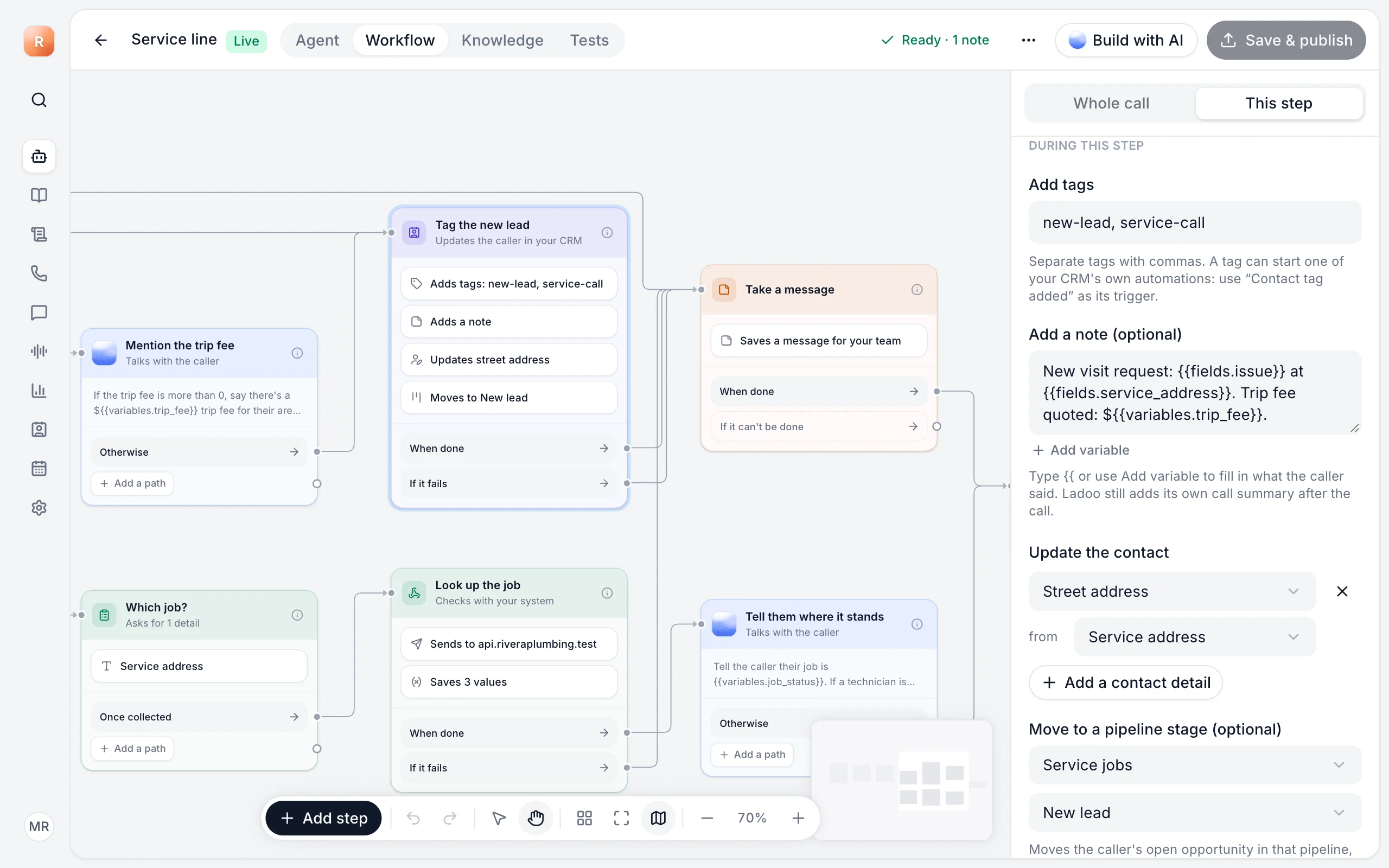
A LeadConnector step updates the caller's CRM contact while they're still on the line. It can add tags, add a note, fill in contact details from what the caller said, and move their opportunity to a pipeline stage. A tag can start one of your own CRM automations, so your follow-up begins before the call ends.
Before you start
Connect LeadConnector under Settings → Integrations. Connecting LeadConnector is coming soon; until then, click Notify me on the LeadConnector card. Until it's connected, the step says Connect LeadConnector to use this step.
When to use it
- To tag a new lead, like
new-lead, so your own CRM automation sends a welcome email or assigns a rep. - To tag an emergency, like
emergency, and start a CRM automation that notifies your on-call manager. - To save the service address to the contact as soon as the caller gives it.
- To move a caller's opportunity to a stage, like New lead or Quoted, at a specific point in the call.
Set it up
- On the Workflow tab, click Add step and choose LeadConnector.
- Under Add tags, type one or more tags, separated by commas.
- Optional: under Add a note, write the note. To fill in details like what the caller said, type
{{or click Add variable and pick one. It shows as a placeholder like{{fields.issue}}. - Optional: under Update the contact, click Add a contact detail. Choose the CRM field, like Street address, and the detail the caller gave, like Service address.
- Optional: under Move to a pipeline stage, choose a pipeline and a stage.
- Connect When done to the next step. Optional: connect If it fails to a step for when your CRM can't be reached.
- Click Save & publish.
Start a LeadConnector automation from a call
- In the LeadConnector step, add a tag, like
new-lead. - In LeadConnector, go to Automation and create a workflow.
- Add the trigger Contact tag added, and set the tag to the same one, like
new-lead. - Add your actions, like sending an email or creating a task, and publish the CRM automation.
The CRM automation starts as soon as the step runs, while your agent is still talking to the caller.
Example: tag a new service lead
Rivera Plumbing tags every new visit request and drops it into their Service jobs pipeline.
Add tags: new-lead, service-call
Add a note: "New visit request: {{fields.issue}} at {{fields.service_address}}. Trip fee quoted: ${{variables.trip_fee}}."
Update the contact: Street address from Service address
Move to a pipeline stage: Service jobs → New lead
Their own CRM automation, triggered by Contact tag added new-lead, emails the office manager and creates a follow-up task.
What the caller hears
Nothing. The step runs quietly while the agent carries on with the next step.
What shows on the call record
Each run is listed under Call trace on the call in Calls, as crm, with what changed, like "Added tag(s) new-lead, service-call; Added a note; Updated the contact; Moved to New lead", or why it couldn't run.
Limits
- The step finds the caller's contact by the number they're calling from (caller ID), or adds a new contact. Caller ID can be faked. When the phone carrier reports that it couldn't verify the number, the step only ever adds a new contact: if the number already belongs to one, it leaves it alone and goes to If it fails. Even a verified number doesn't prove who's speaking, so don't use the step for anything you'd only do for a verified customer.
- When the caller hides their number, the step doesn't run and goes to If it fails, even if they say a number on the call: anyone can say someone else's number.
- In a website chat, the step uses the phone number the visitor typed, and only ever adds a new contact. If the number already belongs to a contact, the step leaves it alone and goes to If it fails.
- Tags can be up to 64 characters each. Notes can be up to 5,000 characters.
- Update the contact works with standard contact fields: first name, last name, full name, email, street address, city, state, ZIP / postal code, country, company, website and date of birth.
- Moving to a stage moves the caller's open opportunity in that pipeline, or opens one if they have none.
- If the step runs twice on the same call, it skips what's already done. Ladoo's own update after the call doesn't add the same tags again or move an opportunity the step already moved.
- Pipeline stages belong to one CRM account, so they're left out when you export the workflow. Choose the stage again after an import.
- A call can run up to 5 LeadConnector steps in a row before the caller speaks again.
FAQ
Does Ladoo still update your CRM after the call?
Yes. After every call, Ladoo still adds its call summary and tags by outcome, as set under Connect LeadConnector. The LeadConnector step is for changes you want during the call, at a specific point.
What happens if your CRM can't be reached?
The call goes to If it fails. If you didn't connect it, the call carries on at When done, so the caller never notices.
Can I set a custom field?
No. Update the contact covers the standard contact fields. Put anything else in the note.
Related guides: Custom code step: work things out with JavaScript, Condition step: send the call one way or another and Webhook step: check your own system during a call.
Still stuck?
Ask our support agent (it runs on Ladoo), or email the team.