Transfer step: put the caller through to a person
The Transfer step in a Ladoo workflow puts the caller through to one phone number or whoever is on call in a team, briefs them first if you like, and carries on if nobody answers.
By the Ladoo team · Updated
A Transfer step puts the caller through to a real person: one phone number, or whoever is on call in a team. The caller hears hold music while the phone rings. If nobody takes the call, the agent comes back and carries on, so you never lose the caller.
When to use it
- For emergencies, to reach your on-call technician right away.
- For callers who need the office, like a billing question.
- After a Flag urgent step, so the call is marked urgent whether or not someone picks up.
Set it up
- On the Workflow tab, click Add step and choose Transfer.
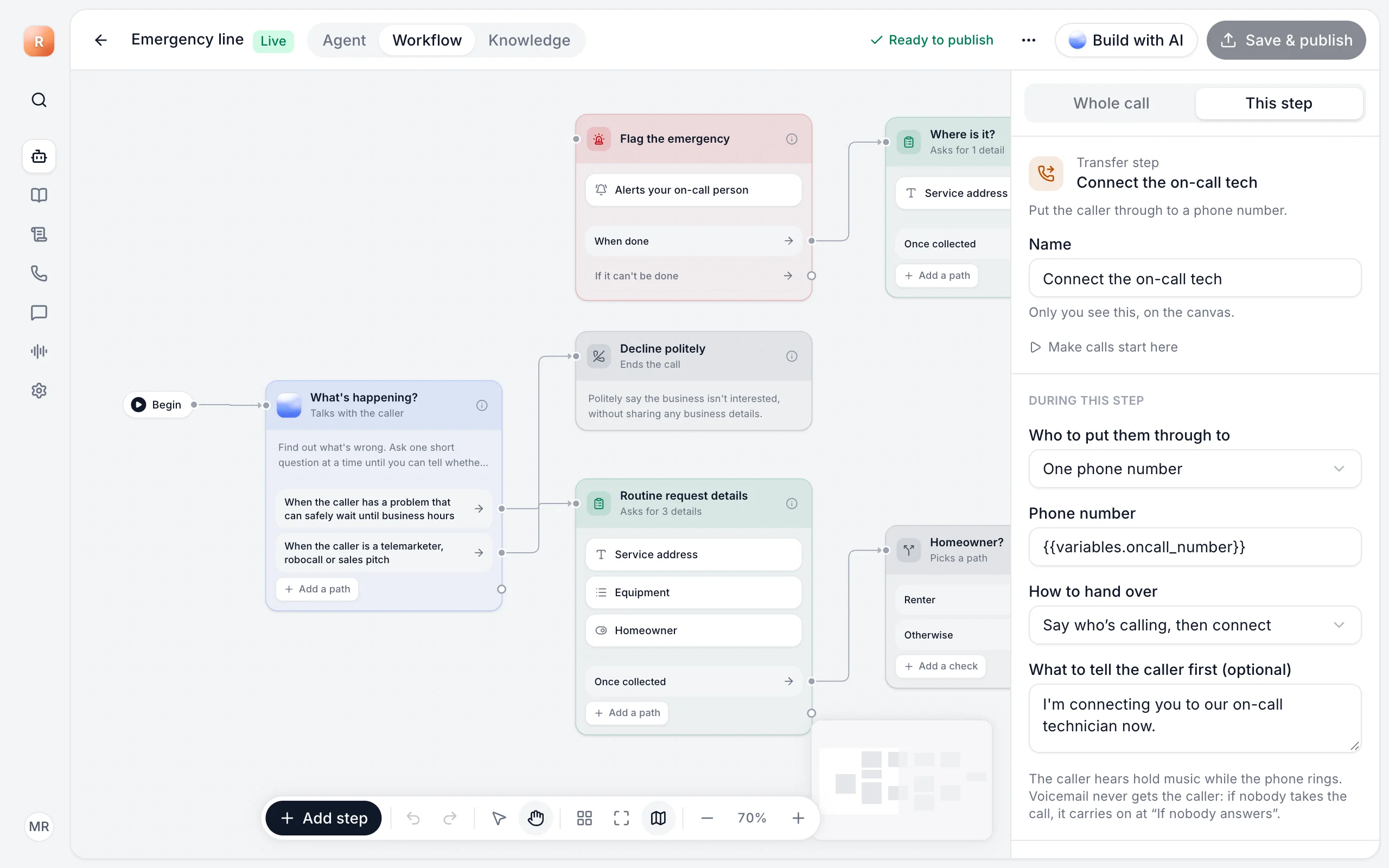
- Under Who to put them through to, choose Whoever is on call in a team, or One phone number and type the number.
- Under How to hand over, choose one:
- Say who's calling, then connect: the agent tells the person who's calling and why, then connects them.
- Brief them and let them accept: the agent tells the person who's calling and why, with the details collected, and asks if they can take it. They say yes or press 1 to connect.
- Optional: under What to tell the caller first, add what the caller hears before the hold music, like "I'm putting you through to our on-call technician now."
- Connect If nobody answers to what should happen next, usually a Take message step.
- Click Save & publish.
For more on setting up teams and rotating who's on call, see Transfer calls to your team and Teams and on-call.
Keep a number in one place
A number you use in several steps, like your on-call cell, can be a business setting. Steps use the setting instead of the number, so when the number changes you change it once.
- When you give Build with AI a number to transfer to, it saves it as a setting named after the step, like Office number, and every step that dials or mentions it uses that setting.
- To pick a setting yourself, type
{{in Phone number, or click Add variable, and choose it. - Under Whole call, Business settings lists each setting with the steps that use it. Change a value there and click Save. It's saved right away and the next call uses it, without publishing.
- If a number is typed out in more than one step, Business settings offers Use one setting for this number, which saves it as a setting and points those steps at it.
- If the setting a Transfer step uses is missing (after importing a workflow, say) or isn't a number Ladoo can call, the step shows a warning, and calls there go straight to If nobody answers. A step whose text uses a missing setting is flagged too. Missing ones are listed under Business settings for you to fill in.
- In step text, a number setting reads the way people write it, like (512) 555-0187.
Undoing a Build with AI answer also removes the settings it saved, unless you changed them since.
Example: a no-heat emergency
Who to put them through to: Whoever is on call in HVAC on call
How to hand over: Brief them and let them accept
What to tell the caller first: "I'm getting our on-call technician for you now. Please stay on the line."
If nobody answers → Take a message
What the caller hears
What you set under What to tell the caller first, then hold music while the phone rings. When the person accepts, they're connected. If nobody takes it, the agent comes back and carries on at If nobody answers.
What shows on the call record
The call shows as Transferred in Calls, with the transcript. A call that was also flagged urgent shows as Urgent.
Limits
- Transfers work on phone calls only, not website chat.
- Voicemail never gets the caller. If the person's voicemail or a carrier recording answers, the agent moves on to the next person, or to If nobody answers.
- A team rings the people on call one at a time, starting from the top. If nobody is on call, the call goes straight to If nobody answers.
- If nobody answers is required, so no caller is left on hold.
- Ladoo calls US and Canadian numbers only, toll-free included. It won't call other countries, the Caribbean (which shares +1, like Jamaica or the Dominican Republic), or premium-rate numbers like 900 and 976 numbers. The editor flags such a number before you publish. If a number like that comes from a variable during a call, the agent doesn't dial it: it tells the caller it can't connect them and carries on at If nobody answers.
- A call can try at most 3 transfers. After that, the agent offers to take a message instead.
- A transferred call ends after 60 minutes.
FAQ
What number does the person see?
The Ladoo number the caller dialed, so your team knows it's a business call.
Can I transfer to more than one person?
Yes. Put them in a team and choose Whoever is on call in that team. They're rung one at a time until someone takes the call.
Can I test a transfer?
Yes, on a paid plan. Start a test call and ask for what triggers the transfer. The phone you set should ring. On the Free plan or during a free trial, test calls don't ring anyone: the agent says it would put you through on a live call, then carries on at If nobody answers. See Test your agent.
Why can't I save a number?
Ladoo only calls US and Canadian numbers, and never premium-rate ones. Enter a regular US or Canadian number, like +1 512 555 0123.
Related guides: Condition step: send the call one way or another, End call step: say goodbye and hang up and LeadConnector step: tag, note and move contacts during a call.
Still stuck?
Ask our support agent (it runs on Ladoo), or email the team.